Showing posts with label oracle weblogic. Show all posts

Wednesday, December 16, 2015

WebLogic 12.2.1 on Docker

Probably everybody in IT has noticed the rising of Docker in last 2 years. Since March 2015 Oracle has certified WebLogic Server on Docker. This is good news. Beyond all buzz around containerization and Docker in particular there is great use for it. Especially during development or testing of an application for WebLogic you can benefit without too much investment (time, skills). Further, since the first day of WebLogic 12.2.1 release it is certified on Docker.

In preparation for one of my last talks lately I decided to checkout this new version. Subsequently are my experiences so far.

Using the following Environment: WebLogic 12.2.1, Mac OS 10.11 , Docker 1.9, Docker Compose 1.5 . I will not go into Docker details here. There is a lot of introductorily Docker content available on the web.

WebLogic on Docker Overview

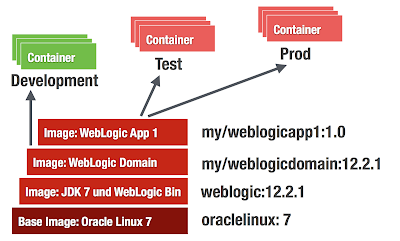
There are no prepackaged WebLogic Docker images available (basically because of user licence agreements) so the images must be build manually from Dockerfiles (provided at GitHub). The following figure shows the needed layers of images to actually start running containers.
  • oraclelinux image - officially available from Docker Hub
  • weblogic binaries image - must be build from Dockerfile (Available on GitHub)
  • weblogic (empty) domain image - must be build from Dockerfile (Available on GitHub)
  • application image - must be build from custom Dockerfile (its your turn)
Prerequisites

  1. Learn some Docker basic skills (if it is new to you)
  2. Download Docker Toolbox 1.9. It exists for Linux / Windows / Mac. It makes you getting started "to docker"  in seconds. (On Win / Mac it installs VirtualBox if needed)
  3. Git Clone https://github.com/oracle/docker/tree/master/OracleWebLogic (Update 12/20/15: it has been updated to https://github.com/oracle/docker-images/tree/master/OracleWebLogic
  4. Download JDK 8u60 http://download.oracle.com/otn/java/jdk/8u60-b27/jdk-8u60-linux-x64.rpm
  5. Download WebLogic 12.2.1 Binaries (I am building the DEV/QUICK Version here. So it is: fmw_12.2.1.0.0_wls_quick.jar)
  6. Copy the JDK / WLS Binaries into the cloned workspace /OracleWebLogic/dockerfiles/12.2.1

How To: Build WebLogic 12.2.1 Developer Image

dockerfiles ak$ sh buildDockerImage.sh -v 12.2.1 -d

Building image 'oracle/weblogic:12.2.1-dev' based on 'developer' distribution...
Sending build context to Docker daemon 1.204 GB
Step 1 : FROM oraclelinux:7.0
7.0: Pulling from library/oraclelinux
f359075ce4d8: Pull complete
..
..
Successfully built 251b87118c43

WebLogic Docker Image for 'developer' 12.2.1 is ready to be extended: oracle/weblogic:12.2.1-dev
dockerfiles ak$ docker images
REPOSITORY                    TAG                 IMAGE ID            CREATED             VIRTUAL SIZE
oracle/weblogic               12.2.1-dev          234ea4e45bc7        44 hours ago        1.738 GB
oraclelinux                   7.0                 707f44423637        7 weeks ago         197.2 MB


How To: Build WebLogic 12.2.1 Sample (Empty Domain) Image

This is pretty straightforward. Just change into the sample directory and kick off the docker build.

samples/1221-domain$ docker build -t enpit/samplewls:12.2.1-dev .
...
akmac2:1221-domain ak$ docker images
REPOSITORY                    TAG                 IMAGE ID            CREATED             VIRTUAL SIZE
enpit/samplewls               12.2.1-dev          3861d745a0bc        44 hours ago        1.739 GB
oracle/weblogic               12.2.1-dev          234ea4e45bc7        44 hours ago        1.738 GB
oraclelinux                   7.0                 707f44423637        7 weeks ago         197.2 MB

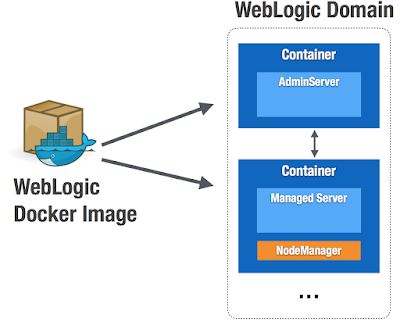
At this point you have an image from that you can run weblogic containers. Having some Shell scripts included the image supports different types of containers to run. This is because of WebLogic Domain concept. See next Fig.


Run WebLogic AdminServer Container (the "Docker-Way")

Nothing easier then that:
akmac2:1221-domain ak$ docker run -d -p 8001:8001 --name=wlsadmin enpit/samplewls:12.2.1-dev
545cc33b8703586b1cc9098bbffe5d48ae6810c031c5104a8828b6718eb9fd03
akmac2:1221-domain ak$

The container starts the default command from the Dockerfile which in this case is "startWebLogic.sh"
(Providing a name is optional but it helps to better identify the running container)

The easiest way to get the right IP / URL to access the Admin Console is looking at the Kitematic UI in the "Ports" Tab
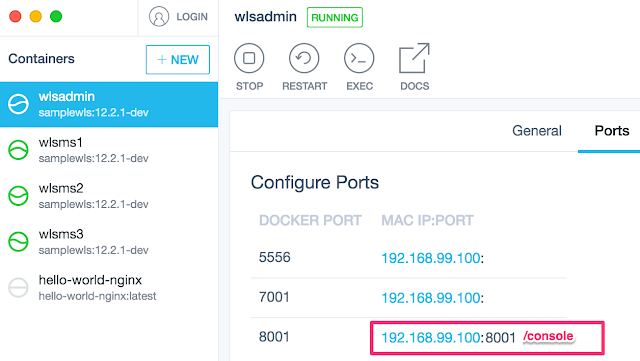
So in my case I access the WebLogic Admin Console http://192.168.99.100:8001/console . Logging in with defaults weblogic / welcome1. With the above command you can now start as many AdminServers (in its own WebLogic Domain) as you want.

Extend WebLogic Domain with Managed Servers (Classical WebLogic Topology) 

Starting Managed Server Containers is also straightforward (if the Dockerfile is working for you. I had to make some modifications. See later)
akmac2:1221-domain ak$ docker run -d --name=wlsms1 --link wlsadmin:wlsadmin -p 7001:7001 enpit/samplewls:12.2.1-dev createServer.sh
bd8d53209781ea52096fba166fa6190b336366f3c0673b0a7452822a0e6d7a44
akmac2:1221-domain ak$

To add another managed server just run with different name parameter and map the container 7001 port to a different host (docker machine) port if you want to access the managed server directly
akmac2:1221-domain ak$ docker run -d --name=wlsms2 --link wlsadmin:wlsadmin -p 7003:7001 enpit/samplewls:12.2.1-dev createServer.sh
7389bfa89ffe0e07a286a9a88e3b0a3f30a77a33f464af4f8264efdc00ae7313
akmac2:1221-domain ak$
..

The createServer.sh Skript connects to the admin server, extends the domain by a machine (the container) and a managed server entry. Further it starts the NodeManager.

In the Admin Console you should notice the new machines and Managed Servers. (The managed server must be started manually; the createServer.sh Script is not doing it (Update 12/20/15: the scripts has been updated so managed server starts automatically)). In my sample I then have the following configuration

(Update 12/20/15: the following two issues might have been fixed in GitHub Repo)
Note: In order to make the above "createServer.sh" work for me I had to do the following modifications (and rebuilding the image of course)
(1) Issue: createServer.sh file not found ....
Adjust the sample 1221-domain/ Dockerfile.emptydomain.

Fix: I added the following underneath the statement "USER root"
RUN chmod +x /u01/oracle/*.sh && chown oracle:oracle -R /u01/oracle

(2) Issue: When the "createServer.sh-container" started and I try to start the managed server through Admin Console (that actually is done through the NodeManager) the process just hangs after a while... To fix that I modified the file
1221-domain/container-scripts/add-server.py:
Change the arguments for starting the managed server with additional argument.
..
arguments = '-Djava.security.egd=file:/dev/./urandom -
..
(It is a known "issue" on headless systems because of missing keyboard/mouse input entropy for random device)

Note: After making those changes and rebuild the "empty wls domain image" the "createServer.sh"-script worked as expected for me. But I noticed an increase in the image size from 1.7GB to 2.3GB. Not sure where it comes from. Maybe because I tried some other changes to make the Dockerfile work for me.  I need to investigate more and/or file an issue on that. 

Building an Java EE Application Image

Well, that's pretty straightforward. I took some existing WAR file from a tutorial (shoppingcart.war) and dockerized that app by creating a WLST Deploy script and of course a Dockerfile (that extends the WebLogic 12.2.1 Dev Domain Image)

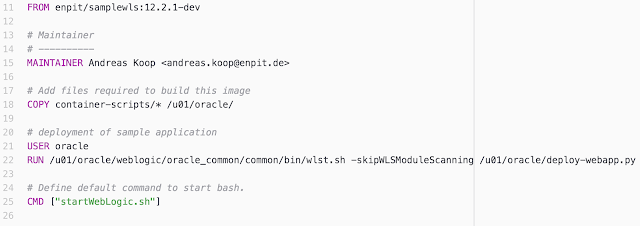
Here is the Dockerfile:

And here the sample deploy WLST script:


Notice that the Admin Server is started during the build time in order to deploy to the AdminServer.
To build the sample Java EE application you need to run:
docker build -t enpit/shoppingcart:1.0-dev .

Now you have a dockerized simple Java EE application that you can run with

docker run -d -p 8001:8001 enpit/shoppingcart:1.0-dev

Composing and Running Multi-Container Applications

Well this should be a post for itself.  But to give you an impression for more complex scenarios: Typically you will run a database or more services that you WebLogic application is based on. Sure it is possible to link containers as shown in the previous sections but with more services it becomes a tedious task. Docker Compose helps to configure a multi-container environment that can simply be started with a single command: docker-compose up

The following docker-compose.yml file configures and links an oracle database-xe container and a weblogic container.
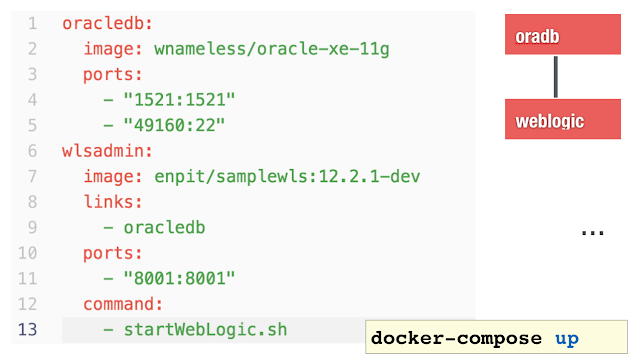
Here is the sample output docker compose provides (if running without -d option)
akmac2:1221-testds-app ak$ docker-compose up
Creating 1221testdsapp_oracledb_1
Creating 1221testdsapp_wlsadmin_1
Attaching to 1221testdsapp_oracledb_1, 1221testdsapp_wlsadmin_1
oracledb_1 | Starting Oracle Net Listener.

wlsadmin_1 | ..
wlsadmin_1 | ..
oracledb_1 | Starting Oracle Database 11g Express Edition instance.
wlsadmin_1 | ..
wlsadmin_1 | ..
wlsadmin_1 | Dec 16, 2015 10:19:14 PM GMT Notice WebLogicServer BEA-000360 The server started in RUNNING mode.

This should just give you an idea that simple Docker containers are just the beginning. With Docker Compose (and Docker Swarm) there is more to come.

Summary and Conclusion

Docker is fun and fast. It is easy to get started. The official provided WebLogic Dockerfiles on Github from Oracle help a lot to get started quickly. But be aware of that the Dockerfiles not meant to be perfect. Its an example how to get started and build your own WebLogic Docker images. The sample domain had to be adjusted otherwise the WebLogic JVM process did not start for me. But since the Dockerfiles are shared on GitHub it's easy to contribute. Bruno Borges and Monica Riccelli from Oracle are doing a great job in making all that to work and being certified by Oracle. Thank you guys!

For a long time WebLogic user it is untypical why port 8001 is used as default HTTP AdminServer Port. Why not running it on 7001 and use 8001 for Managed Server? or 7003, 7005 etc for managed server. ? (Note to me: Open an discussion on GitHub and fix that)

When running the ManagedServer (MS) type of container the MS is not started automatically. With some WLST scripting it could be improved I think.

Using docker-compose it should be possible to set up a cluster configuration and easily run it with: docker-compose up.

With Docker 1.9 Networking / Persistent storage capabilities and accordingly Docker Compose and Swarm has been greatly improved. This is great news. As it is going to allow Multi-Host WebLogic Cluster Containers. (Update 12/20/15: Multi-Host WebLogic Cluster Sample has been added in the corresponding GitHub Repo. Kudos to Bruno; great work!)

So there is still changes going on but in terms of simplification and improvement. I hope to see Docker Compose And Swarm for WebLogic working soon. But it will need some time because compose/swarm is sill experimental. There might be some networking issues at the moment of this writing.

Further information


Check out the presentation from DOAG 2015 (GER)

Saturday, October 24, 2015

ADF 12cR2 (12.2.1) with lots of new features available - as part of Fusion Middleware 12.2.1 release, including WebLogic, SOA, WebCenter and Forms/Reports

Just before Open World 2015 & JavaOne open its doors for Oracles annual conference in San Francisco the long awaited ADF / WebLogic 12.2.1 has been released as part of Fusion Middleware 12.2.1.


The most interesting Updates to JDeveloper & ADF & WebLogic in terms of platform are

  • It runs on JDK 1.8. JDeveloper supports 1.8 features
  • Full Java EE 7 Support
  • Integration with Java Cloud Service (not only SaaS Extention and Developer Cloud Service, git etc)
  • Better Maven integration
On the feature list of ADF 12.2.1 there are mainly these cool things available
  • REST Service DataControl + REST from ApplicationModules
  • Responsive Layout features (af:matchMediaBehavior) and new Responsive Template (Masonry layout)
  • Remote Regions - Consume Taskflows remotely
  • Improved Data Visualization components

I am really looking forward to try out the many new features.

Further Information


Saturday, November 2, 2013

Setup WebLogic 12c environment with Vagrant and Puppet

For one of my presentations at DOAG 2013 I wanted to play around and checkout new features with the latest WebLogic version 12.1.2. To save some time and get experienced in some of the cool DevOps tools I gave a try for Vagrant and Puppet to setup a fresh new WebLogic 12c machine. BTW: All this is possible due to the impressive work Edwin Biemond has done in the last weeks and month (Checkout his powerful puppet modules https://github.com/biemond/puppet/) plus the Vagrant based provisioning script of Matthew Baldwin. (Checkout his recent blog post about that  http://vbatik.wordpress.com/2013/10/11/weblogic-12-1-2-00-with-vagrant/)

To give you a better overview of what I am going to do I created a simple diagram:

I am running the following test drive on Mac OS 10.8.5

Prerequisites
On your host system make sure the following tools are installed

1) Oracle VirtualBox 4.3
2) Vagrant 1.3.5
3) git

Before going on just open 'Terminal' and check if the command line tools are available.

akmac2:~ ak$ vagrant -v
Vagrant 1.3.5
akmac2:~ ak$ git --version
git version 1.7.12.4 (Apple Git-37)


Configuring the desired VM
akmac2: $ cd /Users/ak/Workspace/github
akmac2:github ak$ git clone https://github.com/matthewbaldwin/vagrant-wls12c-centos64.git
Cloning into 'vagrant-wls12c-centos64'...
remote: Counting objects: 280, done.
remote: Compressing objects: 100% (179/179), done.
remote: Total 280 (delta 90), reused 255 (delta 71)
Receiving objects: 100% (280/280), 612.79 KiB | 90 KiB/s, done.
Resolving deltas: 100% (90/90), done.
akmac2:github ak$
-------

Next I made some changes to the Vagrantfile and the provisioning script site.pp in order to get the binaries from my external software repository drive. The path on my local machine to the software binaries is as follows:
- /Volumes/EXT_AK_1TB/Downloads/oracle/oracle.java/jdk-7u25-linux-x64.tar.gz
- /Volumes/EXT_AK_1TB/Downloads/oracle/oracle.weblogic/wls_121200.jar

Changes to Vagrantfile done:
config.vm.synced_folder "/Volumes/EXT_AK_1TB/Downloads", "/software"

Changes to puppet/manifests/site.pp done:
...
jdk7::install7{ 'jdk1.7.0_45':
      version              => "7u45" , 
      ....
      sourcePath           => "/software/oracle/oracle.java",
  }
...
$puppetDownloadMntPoint = "/software/oracle/oracle.weblogic"


Now everything is set up to boot and provision the VM:
akmac2:vagrant-wls12c-centos64 ak$ vagrant up
Bringing machine 'default' up with 'virtualbox' provider...
[default] Box 'centos64' was not found. Fetching box from specified URL for
the provider 'virtualbox'. Note that if the URL does not have
a box for this provider, you should interrupt Vagrant now and add
the box yourself. Otherwise Vagrant will attempt to download the
full box prior to discovering this error.
Downloading or copying the box...
Progress: 0% (Rate: 93585/s, Estimated time remaining: 3:23:20)

Successfully added box 'centos64' with provider 'virtualbox'!
[default] Importing base box 'centos64'...
[default] Matching MAC address for NAT networking...
[default] Clearing any previously set forwarded ports...
[default] Creating shared folders metadata...
[default] Clearing any previously set network interfaces...
[default] Preparing network interfaces based on configuration...
[default] Forwarding ports...
[default] -- 22 => 2222 (adapter 1)
[default] -- 80 => 8888 (adapter 1)
[default] -- 7001 => 7001 (adapter 1)
[default] Running 'pre-boot' VM customizations...
[default] Booting VM...
[default] Waiting for machine to boot. This may take a few minutes...
[default] Machine booted and ready!
[default] Setting hostname...
[default] Mounting shared folders...
[default] -- /vagrant
[default] -- /software
[default] -- /tmp/vagrant-puppet/manifests
[default] -- /tmp/vagrant-puppet/modules-0
Running Puppet with site.pp...
Info: Loading facts in /tmp/vagrant-puppet/modules-0/wls/lib/facter/oracle_middleware_homes.rb
Warning: Unrecognised escape sequence '\/' in file /tmp/vagrant-puppet/modules-0/jdk7/manifests/install7.pp at line 93
Notice: Compiled catalog for wls1212.enpitlocal.de in environment production in 2.03 seconds
...
Notice: /File[stopNodeManager.sh]/ensure: created
Info: Creating state file /var/lib/puppet/state/state.yaml
Notice: Finished catalog run in 572.02 seconds
akmac2:vagrant-wls12c-centos64 ak$

Vagrant automatically created the VM in the VirtualMachines folder of your VirtualBox.
and integrated it into the VirtualBox Manager

BTW: The downloaded vagrant boxes are stored in ~/.vagrant.d/boxes. During the download the stream is temporarily stored in ~/.vagrant.d/tmp. So make sure to have enough space in your home directory.


Working with the WLS 12c machine
Well this is pretty easy. Just run
vagrant ssh

to log into the running VM as user vagrant.

Typically you would like to work as oracle user. Just do
wls12c$ su oracle 

By default the root user is locked for security reasons. Any admin tasks can be done as vagrant user by sudo. Nevertheless you can unlock the root user with the following command

# After logging in as vagrant 
$ sudo passwd -u root 

Afterwards you can login with user root and pwd vagrant.

Minor Issues
(1)Vagrant provisioning with puppet
Info: Loading facts in /tmp/vagrant-puppet/modules-0/wls/lib/facter/oracle_middleware_homes.rb
Warning: Unrecognised escape sequence '\/' in file /tmp/vagrant-puppet/modules-0/jdk7/manifests/install7.pp at line 93

=> The Warning looks a bit strange but seems not to break the provisioning run!

(2)Trying to run the "service nodemanager_Wls12c start" I got an exception

oracle@wls1212 ~]$ service nodemanager_Wls12c start
/etc/init.d/nodemanager_Wls12c: line 31: /lib/lsb/init-functions: No such file or directory
[oracle@wls1212 ~]$

Solution: Commenting out line 31 in the init script worked for me ;)


Most important vagrant commands for a managed VM
$ vagrant up (on the first run the VM box is downloaded if needed, booted and provisioned by the configuration of the Vagrantfile. On any further runs the VM box is just booted but not provisioned.)

$ vagrant ssh (Logs into the running VM as user vagrant)

$ vagrant up --provision (Boot the VM and provision by the configuration of the Vagrantfile)

$ vagrant halt (shuts down the running VM)

$ vagrant reload (equivalent of running 'vagrant halt' and 'vagrant up')

$ vagrant reload --provision (equivalent of running 'vagrant halt' and 'vagrant up'  and 'vagrant provision')

$ vagrant suspend (Suspend the running VM)

$ vagrant resume (Resume the suspended VM)

$ vagrant provision (Run the provision scripts against the running VM. Great to test script changes)

$ vagrant destroy (The VM will be completely destroyed. Space is freed.)

Conclusion
The combination of Vagrant / Puppet / Puppet Oracle Modules is extremely powerful. It is possible to create predictable,  preconfigured "VMs from code". With this powerful set of scripts and tools it is quite easy to create new environments based on different Oracle FMW Versions. I guess that we (enpit) will automate the creation and configuration of our environments in the future.

Further information

Wednesday, June 19, 2013

Production Redeployment with ADF Shared WebLogic Libraries


Based on my previous post I wanted to know if we can achieve to redeploy parts of an ADF application by using shared WebLogic Libraries. In conjuction with the production redeployment WLS feature the overall goal is to prove that we can update modular ADF applications without downtime.

Introduction

The sample application consists of an employees taskflow that is bundled as ADF Library and deployed as shared library on WebLogic server. The sample is based on ADF 11.1.1.7 / WLS 10.3.5 / HR Schema.

First step: Create ADF Library as Shared WAR deployment

Goto JDev application with the containing Taskflow:

Create a MANIFEST.MF file under ViewController/src/META-INF/ with the following contents
The important parts are

Extension-Name: enpit.sample.empFlow
Specification-Version: 1.0
Implementation-Version: 1.0

Create ADF Library Deployment Profile for the empFlow on ViewController project with dependency on your Model project.
Make sure only connection name is Included in the Library

Having an ADF Library Deployment Profile in the employee taskflow application we create an additional Deployment profile (of type WAR) in the ViewController project. 

Under  WAR Options include the MANIFEST.MF file

Make sure to remove everything from Web Files contributors since we only want to wrap the ADF Library inside this WAR file.

Same to WEB-INF/classes. Exclude everything.

Under Profile Dependencies add the dependency to the ADF Library Profile

Goto WEB-INF/lib Filters and uncheck everything except the desired ADF Library JAR file.

With that WAR deployment configuration we are able to deploy -  the ADF Taskflow -  as shared library to the WebLogic server. (Select ViewController, right click, Choose Deploy > SharedADFLib ...to Application Server)

As a result the library shows up under Deployments in the WebLogic Admin Console

Deploy master application

In the master application that consumes the taskflow from the ADF Library we need to make sure
  • versioning is configured for application deployment
  • ADF Library is not bundled with the EAR
  • Library reference is added to the ADF Shared Library in weblogic.xml (not weblogic-application.xml)
To enable the versioning for the app deployment we add /src/META-INF/MANIFEST.MF file with the contents
Manifest-Version: 1.0
Weblogic-Application-Version: 1.0

Now goto the EAR deployment profile and add the MANIFEST.MF file under the EAR Options

Goto application descriptors Filters and exclude MANIFEST.MF. (Otherwise the EAR won't be created as JDeveloper will try to include 2 MANIFEST.MF files in the EAR. You will see this exception in the deployment log window).

Now exclude the ADF Library from the application deployment. Goto ViewController project properties of the master application and make sure the library is not deployed by default.

In the WAR deployment profile check that the ADF Library JAR is not included


Next create WEB-INF/weblogic.xml and add library reference to the ADF Shared Library.

Important note: In my first try I added that library reference in the weblogic-application.xml. That won't work. At deployment time there will be the following exception
[08:23:54 AM] [Deployer:149034]An exception occurred for task [Deployer:149026]deploy application enpit_application1 [Version=1.0] on DefaultServer.: javax.faces.context.ExternalContext.
[08:23:54 AM] Weblogic Server Exception: weblogic.application.WrappedDeploymentException: javax.faces.context.ExternalContext
[08:23:54 AM]   See server logs or server console for more details.
[08:23:54 AM] weblogic.application.WrappedDeploymentException: javax.faces.context.ExternalContext
[08:23:54 AM] ####  Deployment incomplete.  ####
[08:23:54 AM] Remote deployment failed (oracle.jdevimpl.deploy.common.Jsr88RemoteDeployer)

So don't try this.

Doing it right you should see the following in Admin Console:

Test the application. It loads the taskflow and displays version 1

Next Step: Test production redeployment based on new version of ADF Shared Library
We are going to 
  • Make changes in employees taskflow
  • Change Library Implementation-Version to 1.1
  • Deploy ADF Library as Shared WLS Library
  • Increase application version to 1.1
  • Redeploy master application
So first we increase the library version
and make some simple changes to the JSFF

Next: Deploy ADF Library to JAR
Next: Deploy sharedADFLib Deployment to IntegratedWebLogic

Check deployment in the Admin Console

Goto the master application and change Weblogic-Application-Version to 1.1

and deploy the master application to Verify deployment in the Admin Console once again. You should notice that previous application (1.0) is in stop running state. Actually it is meant to be RETIRED Mode. Existing web sessions will be served by that version 1.0.

Open a NEW BROWSER WINDOW (a different browser window to be dead sure) and point to the master application URL. You should see new version of the integrated Taskflow.

Conclusion

This mechanism is really powerful. It lets you redeploy application parts - maybe of a huge application - without downtime.

Download Sample Application


Related Posts

Thursday, June 6, 2013

WebLogic Application redeployment using shared libraries - without downtime


Environment
Oracle WebLogic 10.3.6

Use Case
An application that depends on custom shared libraries needs to be redeployed without downtime. That means without interrupting the availability of the application to existing and new clients. Since production redeployment is not available for libraries we need to think about a different approach.

Precondition

A shared library (as war) is deployed (state: active) and targeted to - for simplicity say - AdminServer with the following version settings:

Extension-Name: enpit-common-war-lib
Specification-Version: 1.0
Implementation-Version: 1.0.4

An application references that library in its weblogic.xml in the following way:
<?xml version='1.0' encoding='UTF-8'?>
  <library-ref>
       <library-name>enpit-common-war-lib</library-name>
  </library-ref>
</weblogic-web-app>

The library is referenced without any version information. That means it will reference the highest available deployed library version. That application is successfully deployed and also targeted to AdminServer. Its state is active. It is working correctly, accesses Java classes in the shared library.

Problem

Trying to deploy the existing library (not changing the version information) once again 

java weblogic.Deployer -adminurl t3://eden.local:7001 -username weblogic -password welcome1 -upload -library -targets AdminServer -deploy -source enpit-shared-lib-war.war
results in the following error:

Cannot undeploy library Extension-Name: enpit-common-war-lib, Specification-Version: 1, Implementation-Version: 1.0.4 from server AdminServer, because the following deployed applications reference it: enpittestcommons-reflib.war

=> Makes sense!

Solution Trial 1
We change the MANIFEST.MF of the Shared Library that has to be redeployed to
Implementation-Version: 1.0.5   (the deployed one has 1.0.4)

Lets see what happens

Task 17 completed: [Deployer:149117]deploy library enpit-common-war-lib [LibSpecVersion=1.0,LibImplVersion=1.0.5] on AdminServer.
Target state: deploy completed on Server AdminServer

=> We succeeded. Have a new version deployed!

Question 1
Which version is our running application now using?

Well, the application still uses version 1.0,1.0.4 although it is specified that the highest version should be used. To conclude: The application does not dynamically adopt to the new library version. I think that is good. Otherwise it would be much magic happening in the background.

Question 2
We stop the running application. Now the application shows up in the admin console in state "prepared".
Lets start it again. ... It moves again to state "active".

Which version is our running application now using?

Well, In my simple use case I changed the returned string in the library class to "1.0,1.0.5" according to the new library version. And indeed, my sample app shows the right information.
Library-Version: 1.0,1.0.5

Conclusion: That's a powerful way to update dependencies for an application. All you have to do is just restarting the application. At the time of restart the new version of the library is picked up! Further: we are able to undeploy the unreferenced "old" library (in my case 1.0,1.0.4). Everything works as expected except the use feedback at the admin console looks inconsistent. Selecting the Library no referenced applications are shown in the corresponding section


Question 1
How about production redeployment for the application in that scenario? It would mean that the application would have NO DOWNTIME. So lets give it a try. I have undeployed the sample app and deployed it as follows:

java weblogic.Deployer -adminurl t3://eden.local:7001 -username weblogic -password welcome1 -upload -targets AdminServer -deploy -source enpittestcommons-reflib.war -appversion 1.0
Note: That the web application shows up with a version information.

Next: We are going to update the library to impl. version 1.0.6

Task 24 completed: [Deployer:149117]deploy library enpit-common-war-lib [LibSpecVersion=1.0,LibImplVersion=1.0.6] on AdminServer.
Deployment succeeded!

Next: Instead of restarting the web application we Redeployit with "-appversion 1.1"

Log: weblogic.Deployer invoked with options:  -adminurl t3://eden.local:7001 -username weblogic -upload -targets AdminServer -deploy -source enpittestcommons-reflib.war -appversion 1.1
<05.06.2013 19:14 Uhr MESZ> <Info> <J2EE Deployment SPI> <BEA-260121> <Initiating deploy operation for application, enpittestcommons-reflib.war#1.1 [archive: /Users/ak/Dropbox/community/doag/doag-2013-imc/use-shared-lib-app/enpittestcommons-reflib.war], to AdminServer .>
Task 25 initiated: [Deployer:149026]deploy application enpittestcommons-reflib.war [Version=1.1] on AdminServer.
Task 25 completed: [Deployer:149026]deploy application enpittestcommons-reflib.war [Version=1.1] on AdminServer.
Target state: deploy completed on Server AdminServer

Now we test the existing connection. It still shows
Library-Version: 1.0,1.0.5

Further open a new Browser and target to the same web app URL gives me :

Library-Version: 1.0,1.0.6

After sessions timed out, we get the following picture

Conclusion

Shared Libraries on WebLogic Server in conjunction with "production redeployment" is a really powerful feature. Applications can upgrade to a library version without downtime!

Next I would like to check if same is possible with shared ADF Libraries. That way it would be possible to update separate application parts (deployed as ADF Libraries) without downtime. Would be really cool!