Thursday, June 6, 2013

WebLogic Application redeployment using shared libraries - without downtime


Environment
Oracle WebLogic 10.3.6

Use Case
An application that depends on custom shared libraries needs to be redeployed without downtime. That means without interrupting the availability of the application to existing and new clients. Since production redeployment is not available for libraries we need to think about a different approach.

Precondition

A shared library (as war) is deployed (state: active) and targeted to - for simplicity say - AdminServer with the following version settings:

Extension-Name: enpit-common-war-lib
Specification-Version: 1.0
Implementation-Version: 1.0.4

An application references that library in its weblogic.xml in the following way:
<?xml version='1.0' encoding='UTF-8'?>
  <library-ref>
       <library-name>enpit-common-war-lib</library-name>
  </library-ref>
</weblogic-web-app>

The library is referenced without any version information. That means it will reference the highest available deployed library version. That application is successfully deployed and also targeted to AdminServer. Its state is active. It is working correctly, accesses Java classes in the shared library.

Problem

Trying to deploy the existing library (not changing the version information) once again 

java weblogic.Deployer -adminurl t3://eden.local:7001 -username weblogic -password welcome1 -upload -library -targets AdminServer -deploy -source enpit-shared-lib-war.war
results in the following error:

Cannot undeploy library Extension-Name: enpit-common-war-lib, Specification-Version: 1, Implementation-Version: 1.0.4 from server AdminServer, because the following deployed applications reference it: enpittestcommons-reflib.war

=> Makes sense!

Solution Trial 1
We change the MANIFEST.MF of the Shared Library that has to be redeployed to
Implementation-Version: 1.0.5   (the deployed one has 1.0.4)

Lets see what happens

Task 17 completed: [Deployer:149117]deploy library enpit-common-war-lib [LibSpecVersion=1.0,LibImplVersion=1.0.5] on AdminServer.
Target state: deploy completed on Server AdminServer

=> We succeeded. Have a new version deployed!

Question 1
Which version is our running application now using?

Well, the application still uses version 1.0,1.0.4 although it is specified that the highest version should be used. To conclude: The application does not dynamically adopt to the new library version. I think that is good. Otherwise it would be much magic happening in the background.

Question 2
We stop the running application. Now the application shows up in the admin console in state "prepared".
Lets start it again. ... It moves again to state "active".

Which version is our running application now using?

Well, In my simple use case I changed the returned string in the library class to "1.0,1.0.5" according to the new library version. And indeed, my sample app shows the right information.
Library-Version: 1.0,1.0.5

Conclusion: That's a powerful way to update dependencies for an application. All you have to do is just restarting the application. At the time of restart the new version of the library is picked up! Further: we are able to undeploy the unreferenced "old" library (in my case 1.0,1.0.4). Everything works as expected except the use feedback at the admin console looks inconsistent. Selecting the Library no referenced applications are shown in the corresponding section


Question 1
How about production redeployment for the application in that scenario? It would mean that the application would have NO DOWNTIME. So lets give it a try. I have undeployed the sample app and deployed it as follows:

java weblogic.Deployer -adminurl t3://eden.local:7001 -username weblogic -password welcome1 -upload -targets AdminServer -deploy -source enpittestcommons-reflib.war -appversion 1.0
Note: That the web application shows up with a version information.

Next: We are going to update the library to impl. version 1.0.6

Task 24 completed: [Deployer:149117]deploy library enpit-common-war-lib [LibSpecVersion=1.0,LibImplVersion=1.0.6] on AdminServer.
Deployment succeeded!

Next: Instead of restarting the web application we Redeployit with "-appversion 1.1"

Log: weblogic.Deployer invoked with options:  -adminurl t3://eden.local:7001 -username weblogic -upload -targets AdminServer -deploy -source enpittestcommons-reflib.war -appversion 1.1
<05.06.2013 19:14 Uhr MESZ> <Info> <J2EE Deployment SPI> <BEA-260121> <Initiating deploy operation for application, enpittestcommons-reflib.war#1.1 [archive: /Users/ak/Dropbox/community/doag/doag-2013-imc/use-shared-lib-app/enpittestcommons-reflib.war], to AdminServer .>
Task 25 initiated: [Deployer:149026]deploy application enpittestcommons-reflib.war [Version=1.1] on AdminServer.
Task 25 completed: [Deployer:149026]deploy application enpittestcommons-reflib.war [Version=1.1] on AdminServer.
Target state: deploy completed on Server AdminServer

Now we test the existing connection. It still shows
Library-Version: 1.0,1.0.5

Further open a new Browser and target to the same web app URL gives me :

Library-Version: 1.0,1.0.6

After sessions timed out, we get the following picture

Conclusion

Shared Libraries on WebLogic Server in conjunction with "production redeployment" is a really powerful feature. Applications can upgrade to a library version without downtime!

Next I would like to check if same is possible with shared ADF Libraries. That way it would be possible to update separate application parts (deployed as ADF Libraries) without downtime. Would be really cool!

Sunday, May 26, 2013

ADF: Static Values View Object does not show any values (solved)


Environment
ADF/JDEV 11.1.2.4

Problem description
After creating a ViewObject of Type "static values" and running an instance inside the Business Components tester I noticed that no values are displayed at runtime! From the navigation action it looks like there are exactly as many rows that has been created, but whatever row is displayed, all values are empty!


Analysis
Looking in depth I noticed that the reference to the resource bundle where the static values are coming from, is invalid. The path does not match the actual source for the properties file although the static values ViewObject has been created by the JDeveloper Wizard

Solution
Short term solution is to manually adjust the value of the attribute PropertiesFile of the corresponding ResourceBundle.

So if the Property file is under src/enpit/sample/adf/transientvoascriteria/modelBundle.properties set the value to PropertiesFile="enpit.sample.adf.transientvoascriteria.modelBundle"

Rebuild and restart the BC Tester to verify that everything is working as expected:


Remark
The reason for the mismatch I guess is because JDeveloper does not handle everything correctly if having dots in project names. So take care if you use JDeveloper project names like 'MyApp.Model'. Double check references to the property bundle!


Saturday, April 6, 2013

ADF 11.1.1.7 New Feature: HTML5 Placeholder


Many of us have waited for it some time now. With the arrival of ADF 11.1.1.7 the Input components have got a new attribute: placeholder.

Use Case
Provide a prompt text inside an input component.

Usage

In order to use this feature just fill in the newly added attribute from the property inspector or directly in the source code.


On runtime it is properly rendered as placeholder-HTML5 Attribute.

Works on all modern browsers ;)

Wednesday, February 20, 2013

JDeveloper Code-Template for ADFLogger


 Environment: JDeveloper 11.1.1.6

To make the Logger-Declaration a not so tedious work you can make use of JDeveloper Code Template features which is available in the preferences.
In JDeveloper:

1. Open from the menu: Tools > Preferences
2. Open: Code Editor > Code Templates
3. Click "+" to add a new code template


4. Goto the Code-Tab and add the following:

private static final ADFLogger LOGGER = ADFLogger.createADFLogger($clazz$.class);

5. Goto Imports-Tab and add needed classes:

oracle.adf.share.logging.ADFLogger

6. Confirm Changes by clicking 'OK'.

=>> The Code-Template 'logger' is now available inside the Java-Editor.


Using the Code-Template in JDevelopers Editor

1. Open a Java class
2. Place cursor right inside class definition, type 'logger' and press 'Ctrl+Enter'.


Afterwards the ADFLogger is available inside the Java class.


On the following Blog posts you can find more information around ADFLogger + a CodeTemplates XML which you can import in your JDeveloper.

More information


Sunday, December 30, 2012

Managing ADF Applications with Oracle Java Cloud Service Control


In this post I am going to show how to manage and monitor Oracle ADF Applications in the Oracle Cloud using Oracle Java Cloud Service Control.

Prerequisites
You should have the following done before trying the described steps in this post yourself.
Managing tasks
The Oracle Java Cloud Service Control - that's the official name - is a subset of Enterprise Manager Cloud Control 12.1.0.2.0. It supports the Cloud Service Administrator to do the following tasks:
  • View the list of services, metrics and availability of each service instance
  • Deploy / Undeploy / Start / Stop Java EE (ADF) applications
  • View cloud service job logs to see and verify recent activity
  • View and export application log messages
  • View ADF Application performance metrics <<< "does not work for me"
Getting started, Monitor Service Metrics
To get started log in at cloud.oracle.com and open "My Services" tab.

On this screen the first interesting metrics can be monitored per Java service instance.
  • Java Heap usage, averaged over the last 15 minutes
  • CPU usage, averaged over the last 15 minutes

From the service overview we can follow the 'Service Console' Icon that will take us to the 'Oracle Cloud Java Service Control'
The dashboard mainly shows an overview of the service availability and some common used resource usage metrics in different representations (diagram, table) like
  • Active HTTP Sessions
  • Request processing time (in ms)
  • Request count (per minute)
  • Open JDBC Connections
  • Java Heap Usage
  • CPU Usage

Deploy / Undeploy / Start / Stop Java EE (ADF) applications
The next important part is the possibility to Deploy, Undeploy (Delete), Redeploy, Start & Stop Applications. These are common administration tasks which are easy to use without any complications - at least start, stop worked fine so far ;). 

For this post I am going to try deployment of ADF App right from the browser. Let's see if it works (The first ADF Deployment into the Oracle Cloud I have done from JDeveloper IDE, which worked without any problems). So let's click 'Deploy New' 
Choose an EAR from you local machine, give the child a name and press 'Deploy'. 

The upload goes really quick and user is provided with a message which says that a cloud service Job has been started in order to perform the task.
Lesson learned: It is not possible to provide a deployment plan while deploying ADF Applications in the Oracle Cloud.

This brings us to the next feature. 

Cloud service job logs
On the bottom of the cloud control dashboard there is a table panel 'Java Cloud Service Jobs' to track the recent activity. After refreshing the dashboard we notice that the previously started deployment job has failed.

Select the corresponding row and open the 'View Java Cloud Service Job Logs' Menu

The strange thing here (bad UX) is that the service administrator has to guess what actually caused the deployment to fail from 3 options
  • The uploaded EAR might have not passed the virus scan
  • The uploaded ADF Application might have not passed the whitelist validation
  • The deployment failed due to some other issue.
a) For every option you choose from the Menu a file is downloaded and can be viewed on the local machine.
Virus Scan: Passed successful.

b) Next: Application Whitelist Validation
2012-12-29 16:41:23 CST: Starting action "API Whitelist"
2012-12-29 16:41:23 CST: API Whitelist started
2012-12-29 16:41:24 CST: WARNING  - There are 2 warnings(s) found for enpit_cloudapp2.ear.
2012-12-29 16:41:24 CST: WARNING  - Path:enpit_cloudapp2.ear (2 Warnings)
2012-12-29 16:41:24 CST: WARNING   - Path:enpit_cloudapp2.ear (2 Warnings)
2012-12-29 16:41:24 CST: WARNING    - Path:enpit_cloudapp2.war (2 Warnings)
2012-12-29 16:41:24 CST: WARNING     - Path:WEB-INF**** (2 Warnings)
2012-12-29 16:41:24 CST: WARNING      - 1:Recommended child element "jsp-descriptor" missing under element /
               bea-weblogic:weblogic-web-app.
              
               If you have a JSP file that is not pre-compiled, The compilation errors
               could be shown on the browser. It is recommended to include
               <jsp-descriptor><verbose>false<****><****-descriptor> in weblogic.xml.
               Line No:2.
2012-12-29 16:41:24 CST: WARNING      - 2:Recommended child element "session-descriptor" missing under element /
               bea-weblogic:weblogic-web-app.
              
               You will be required to have distinct cookie-path, if multiple
               applications are accessed with in the same SSO session or if you have
               multiple applications with different auth-method(CLIENT-CERT, FORM, BASIC)
                in the same service instance.
               Line No:2.
2012-12-29 16:41:24 CST: WARNING  - enpit_cloudapp2.ear had  2 warning(s).
          
2012-12-29 16:41:24 CST: INFO     - Whitelist validation has completed with 0 error(s) and 2 warning(s).
2012-12-29 16:41:24 CST: Whitelist validation passed.
2012-12-29 16:41:24 CST: "API Whitelist" complete: status SUCCESS


c) Looks like the deployment actually went wrong - and indeed

2012-12-29 16:41:24 CST: Starting action "Deploy Application"
2012-12-29 16:41:24 CST: Deploy Application started
2012-12-29 16:41:40 CST: weblogic.application.ModuleException:
2012-12-29 16:41:40 CST: WLS action state: failed
2012-12-29 16:41:40 CST: Action FAILED with WLS state: failed
2012-12-29 16:41:40 CST: Application deployment failed.
2012-12-29 16:41:42 CST: [Deployer:149034]An exception occurred for task [Deployer:149026]remove application enpit_cloudapp2 on c1.: .
2012-12-29 16:41:42 CST: WLS action state: completed
2012-12-29 16:41:42 CST: "Deploy Application" complete: status FAILED

=> Well so it looks like an exception occurred while 'removing the application on c1". This message does not help really much, is confusing since that was the first deployment and no need for removing a previous application.

Application log messages
Maybe the log messages give some more information about the failure. The messages are accessible by following the link 'View Log Messages'
Looks like there is a configuration exception in the deployed ADF Application. After deploying the same application from JDeveloper into the Cloud I have noticed the Deployment Platform in the Log was 'Oracle Cloud'. So the problem was clear to me. Open the Deployment Profile and adjust the platform to 'Oracle Cloud' for creating the EAR.
After creating the EAR once again with that setting and performing same steps from the Cloud Control as described above the deployment worked as expected.

Important lesson learned: The Deployment Profiles and so the resulting ADF Application EAR differs.  You cannot use the same EAR for Deployment to on-premise WebLogic Server AND Oracle Cloud Java Service! 


ADF Performance metrics
Clicking on a given ADF applications name shows a dedicated performance view
IMHO the displayed metrics cannot be realtime values because most of the testing time -  there were 2 active HTTP sessions all values were displaying 0. So I guess it is an average view over the last 15 Minutes.

From the application menu the ADF Performance view can be opened.

This part is very disappointing for now since the displayed information is just not true!
The sample app is using an Application Module and so should also display application module pool stats as indicated (but empty :( )

Same to the TaskFlows view
Sample application is using two bounded task flows. So I would expect them to be shown up here.


Conclusion
In general the Java Cloud Service Control makes what it is made for. It looks like the observed shortcomings are a limitation to the trial account or the ADF Performance Summary does not work in its current state. It is interesting to see that even in the official Oracle Cloud Documentation (Sec. Monitoring Oracle Java Cloud Service) there is no word left about the ADF Performance Summary + all available screenshots show 0 sessions, 0 requests and so on.

If someone has a different experience or some guy from Oracle has an explanation for the inconsistent  behavior in the Cloud Service Control feel free to comment. I would be happy to be convinced from the opposite - a reliable cloud service control for monitoring ADF Applications.

Enhancement Requests
  • Java Cloud Service Jobs
    • Emphasize failed jobs, e.g. displaying 'Failed' in Red.
    • In case of failed jobs there should be made clear on first view what caused the issue (Virus detected, Whitelist violated, other issue).
    • Error message in case of failed deployment should be more useful. An message like 'An exception occurred for task [Deployer:149026]remove application enpit_cloudapp2 on c1.: .' does not say anything about the cause.
  • Resource Usage metrics (sessions, Request processing time, JDBC Connections)
    • Realtime Values. Currently it looks like the values are most of the time 0 even if there is some load.
  • ADF Performance 
    • Display the actual metric values. Currently AM Pool and Taskflow metrics are not shown.
  • General: Improved Reliability. Sometime there were just errors and inconsistent information displayed (see next image). E.g. error getting datasources and open JDBC Connections = 0 but the DB based application was accessible and worked fine.

Documentation

Related Posts

Sunday, December 2, 2012

Deploying ADF Applications into the Oracle Cloud using JDeveloper


In this post I am going to show how to deploy Oracle ADF Applications into the Oracle Cloud using JDeveloper.

Prerequisites / Environment
You should have the following at your hands.
  • JDeveloper (JDEVADF_11.1.1.6.0CLOUD_GENERIC_121118.1600.6229)
  • Oracle Cloud Java Service (which includes the database cloud service as well)
  • Oracle Database (HR Schema)
  • Having deployed the DB Objects and Data (HR.EMPLOYEES and HR.DEPARTMENTS) as described in the previous post
Note: In its current stage Oracle Java Cloud Service runs WebLogic Server 10.3.6 with the appropriate Runtime ADF 11.1.1.6. Deployment of ADF 11gR2 Applications is currently not supported. Beside this limitation some ADF Features are not supported on the Oracle Cloud. According to the Oracle Cloud Documentation it is not supported to use the following ADF features
  • ADF Desktop Integration
  • ADF mBean
  • ADF MDS (Seeded customizations or cross-session personalization)
  • ADF Mobile
  • ADF Active Data Services (=> No real-time ADF Web Apps in Oracles Cloud)
  • ADF Business Components services interfaces (web services) or events
  • ADF Data Controls for BI, Essbase, BAM, and JMX
Further there are some restrictions which are good to know I think
  • No Java Mail API   (=>Sending Mails is prohibited)
  • No File system access by deployed applications (=>Writing files is prohibited)
  • No Direct use of Oracle JDBC Driver APIs
  • No Java Message Service (JMS)
  • Max Size for deployment archive 95MB

I wonder what 'ADF Mobile' in that context actually means. Mobile Browser Apps? Or the restriction that ADF Mobile Client apps cannot make use of ADF BC SDOs? Maybe someone from Oracle could comment. That would be great. Thx!

Setup ADF Application
OK, let's do the actual work. In order to have shown the whole deployment procedure (database objects and ADF Application) we are going to create a basic ADF Application that is running against a non-cloud, on-premise database first using the well known DB schema HR  - involving table EMPLOYEES and DEPARTMENTS. Remember that these table structure + data has been deployed to the Oracle Cloud Database before.

I have created Business Components for the desired tables and build a simple master-detail Page for Departments and Employees. To verify the app is functioning as expected run in on the integrated WebLogic Server prior to deploying to the Cloud:

Looks good so far.

Prepare ADF Application for Cloud Deployment
Since we want to make the ADF Application connect to the Oracle Cloud Database Service we need to make sure the applications does the right DataSource Lookup. Therefore we need the right JNDI-Name which is pretty easy to find out. 

and take a look at the associated DataSource with your Java Cloud Service.

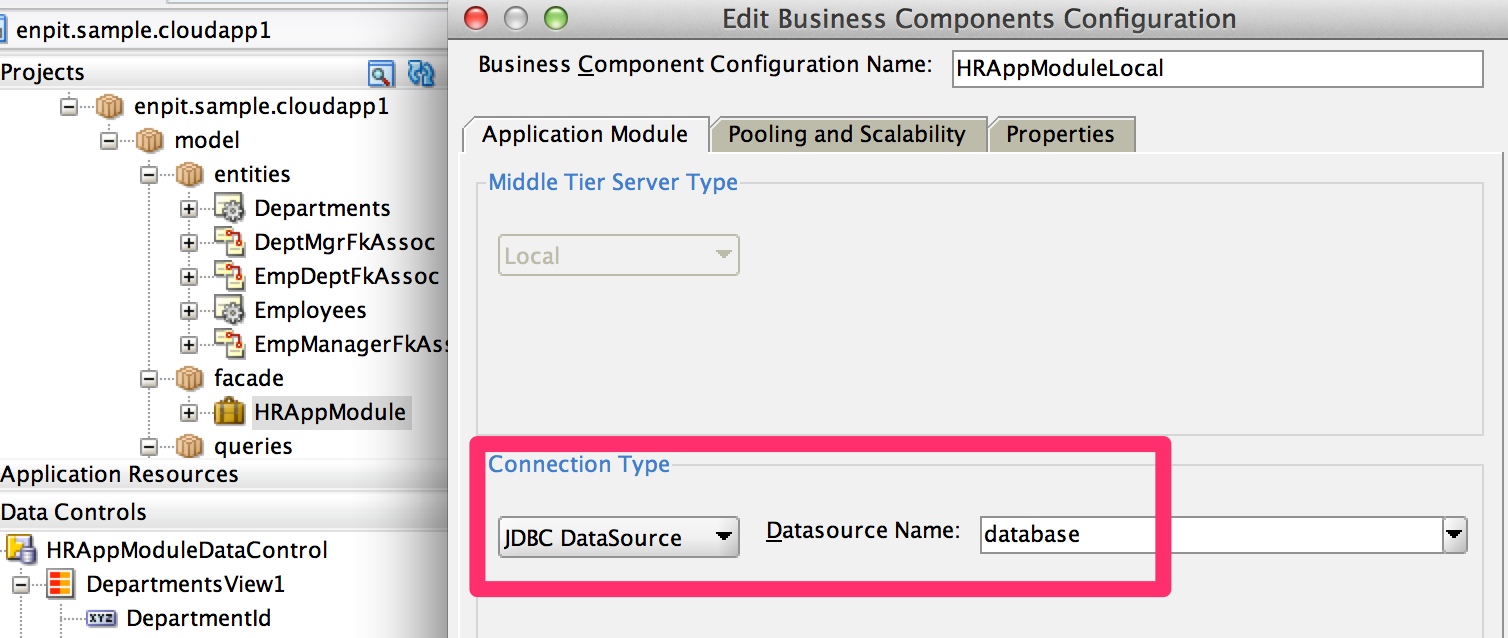
Now the remaining task is straight forward (at least for everyone who has configured ADF Applications in the past). Open the Application Module and adjust the default configuration accordingly. That means Connection Type = JDBC DataSource with the given name database.


Note: If you want to a single configuration for on-premise and cloud just make sure to create a datasource bound to JNDI Name 'database' in your integrated WebLogic Server.

Make the ADF Application publicly accessible
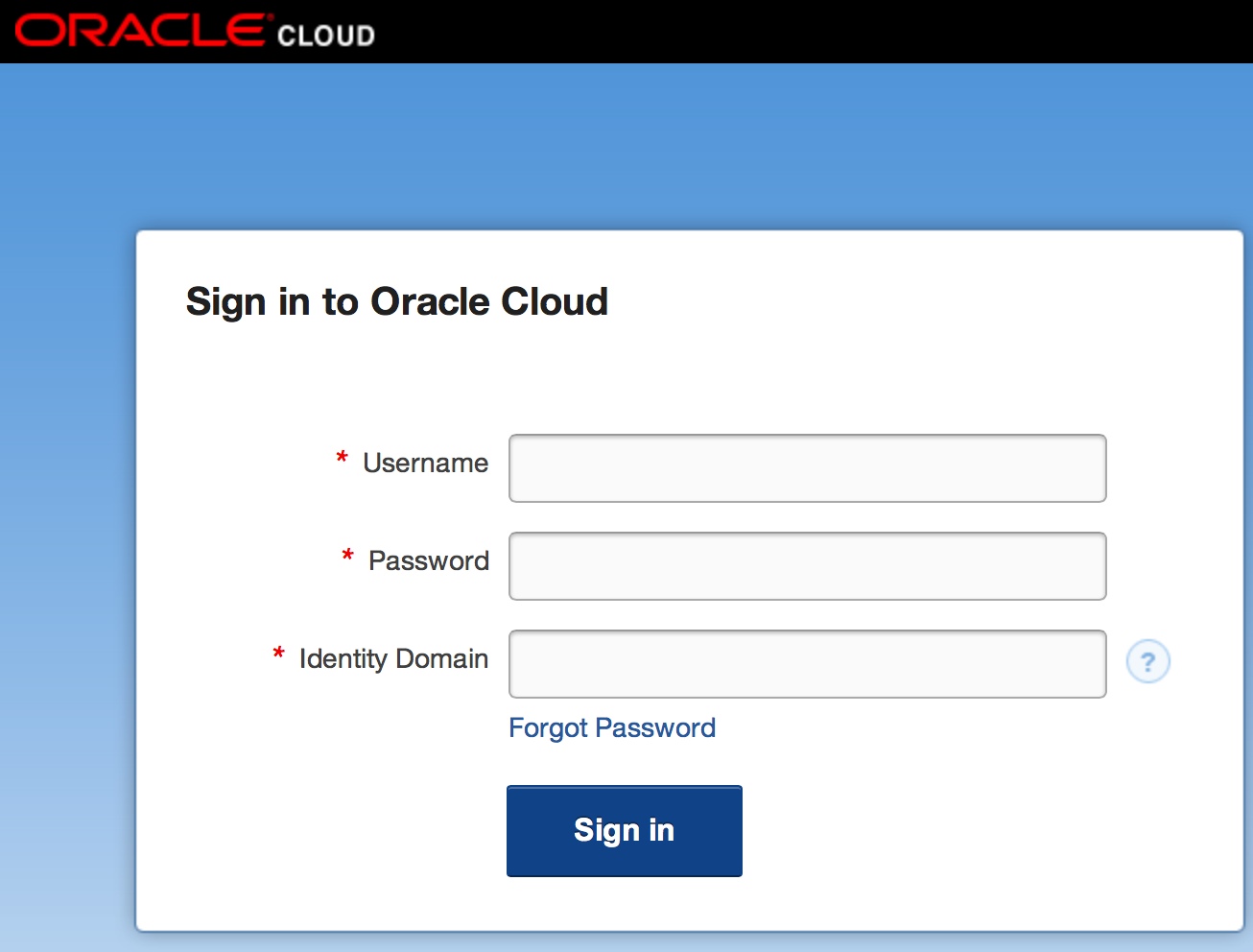
By default all ADF Application deployed to Oracle Cloud will be automatically secured! When users access the application they will be redirected to authenticate against the associated identity domain. The login screen will look like that

Since I want to make the ADF Application for everyone outside the identity domain accessible there is one simple configuration change in the web.xml descriptor needed.

Just add <login-config/> at the appropriate place and the app will be public.
That's easy. The application is now ready for the Cloud Deployment.

Deploy ADF Application to Oracle Cloud
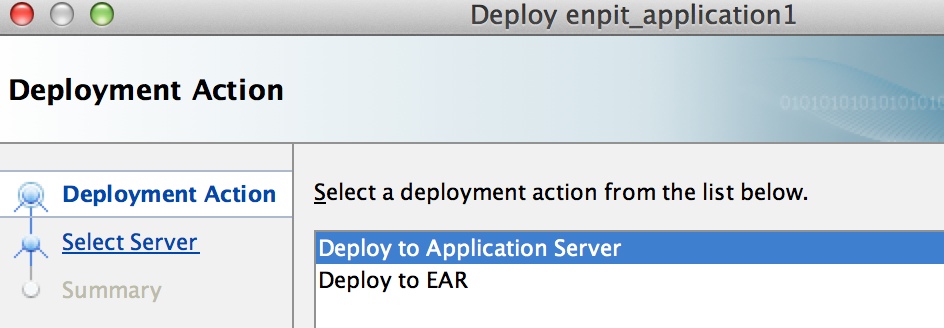
Goto 'Application > Deploy > 'deployment profile name'
[Deployment Wizard opens]

Select: Deploy to Application Server
Click: Next

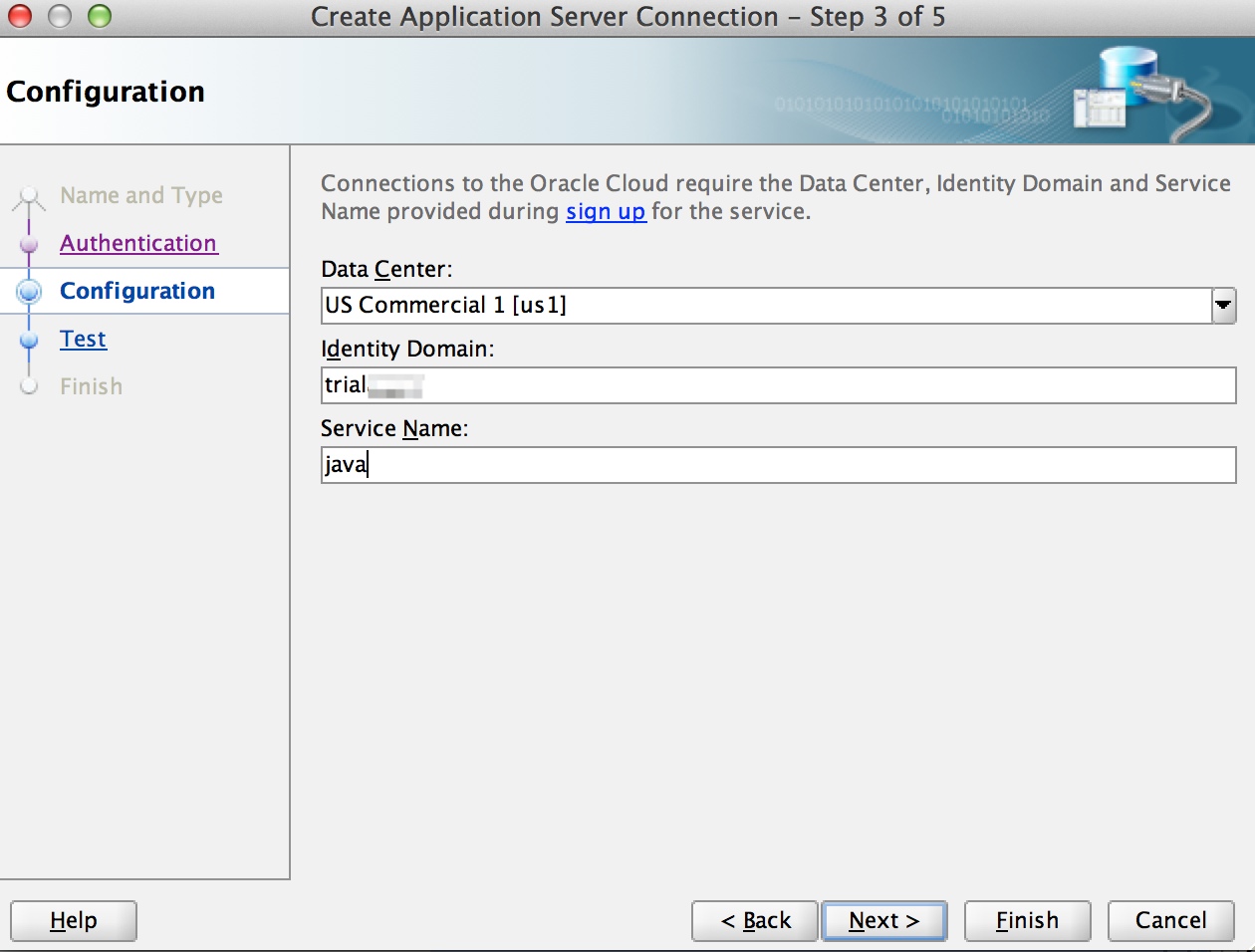
Enter Connection Name: <some_conn_name>
Select Connection Type: Oracle Cloud
Click: Next

Enter Username: <Your Cloud Identity user name>
Enter Password: <Your password>


Select Data Center: <Data Center>
Enter Identity Domain: <Your identity domain name>
Service Name: <Your service name, by default it is java>
Click: Next

Test the cloud java connection
Click Next,

The ADF Deployment to the Cloud starts. Follow the processing in the Log window.
After less than 2 Minutes the ADF Application is available in the cloud. 
(If it is not available chances are high my trial oracle cloud account is expired ;) )

Some words on redeployment: On redeployment from the JDeveloper IDE the previously deployed app version is undeployed first. The the new app version is deployed as expected.

Summary 
  • Deploy DB Objects if needed to Oracle Cloud Database
  • Configure Application Module to use Connection Type JDBC DataSource, Name: database
  • Add <login-config /> to your web.xml to make the ADF Application public if needed
  • Setup up Oracle Cloud Application Server Connection
  • Deploy ADF Application via Cloud Server Connection
Conclusion
Everything worked as designed so far. No failure / exceptions occurred to me. Thanks Oracle! Great Work!

Related Posts / Documentation